Title here
Summary here
The iAgri Cashbook enables you to keep track of money flowing into and out of your bank accounts. The Cashbook page displays your bank accounts with the current balance of each.
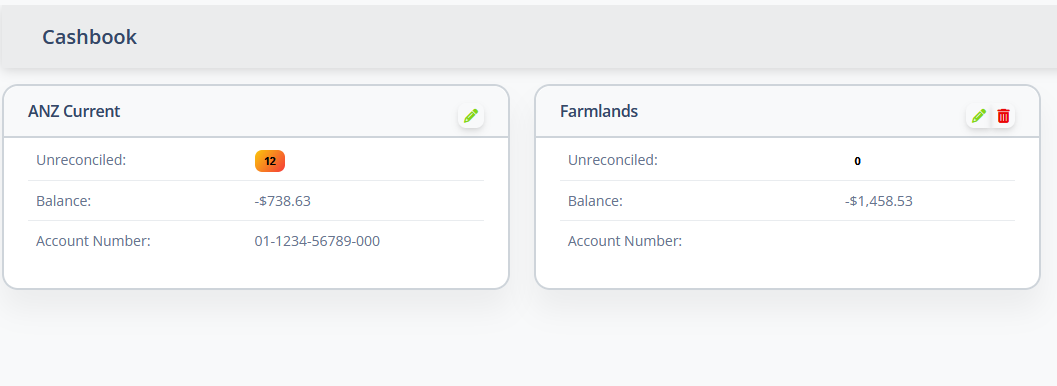
The details of each bank account are displayed:
| Field | Meaning |
|---|---|
| Name | This can be any descriptive name you would like. Clicking the name will open the bank transactions for the account. |
| Unreconciled | Displays a count of the number of bank transactions that have not yet been reconciled. Clicking on this number will open the reconciliation page. |
| Balance | The current balance of the account. |
| Account Number | The bank account number, for reference. |
These details can be edited by clicking the button.
The button can be used to delete the account.
Note
The opening balance can only be edited until the account has some transactions in it. After that, the balance is the sum of the opening balance and all the transactions in the account.
A bank account cannot be deleted if it has bank transactions. All transactions must first be deleted from the bank transactions page.
To get started, add one or more Bank Accounts to the Cashbook. Use the button to create a new account.
The system will present a new, blank, Bank Account panel for you to enter the account details: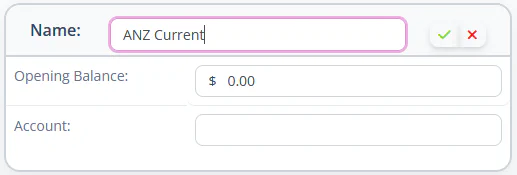
| Field | Meaning |
|---|---|
| Name | The descriptive name of the bank account. |
| Opening Balance | This should be the balance of the account just before the first bank statement that you want to import. |
| Account | The Bank Account number |
Enter the details for the account and click the button to save the new Bank Account.
Once you have added a bank account, click on the name of the account tog to the bank transactions page for the account and import transactions.
Clicking the ellipses menu tool bar button reveals further operations available from the cashbook.
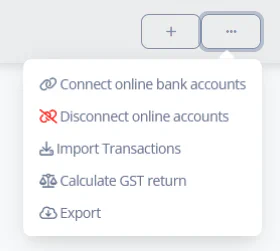
This will display the Link Online Bank Accounts page where you can connect your online bank accounts to the system, to automatically import bank transactions. This is the recommended way of importing bank transactions to the system.
This will delete any connections to online bank accounts and revoke all access from the system to your accounts. The data that has already been imported will remain in the system until it is specifically deleted.
This will request an update from any connected online bank accounts. It should not normally be necessary to invoke this item, as bank transactions are automatically import from connected accounts on a daily basis.
This item will generate a GST return using the cash accounting basis from the transactions in one or more bank accounts.
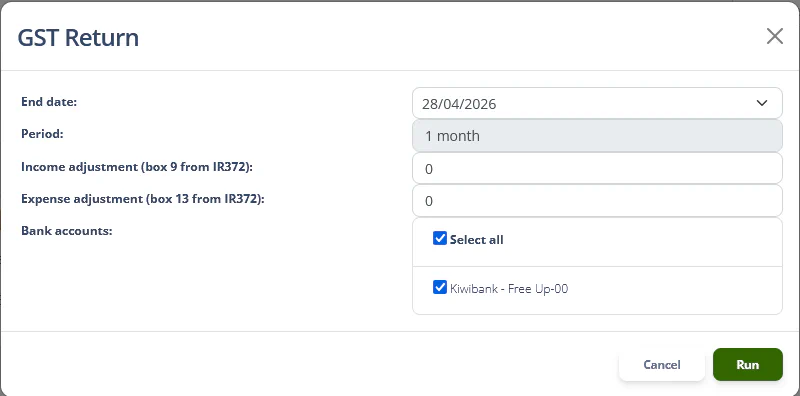
Before the GST return can be calculated, your GST settings must be configured in the Financial Settings page.
This item invokes the Data Export dialog from where you can export bank transaction data in various formats.
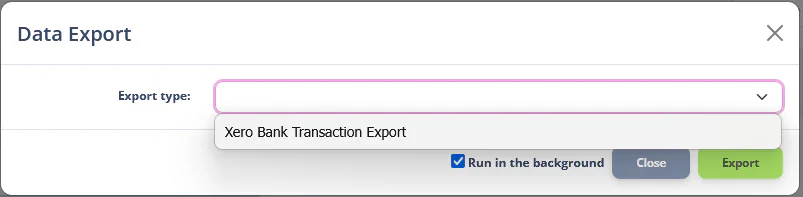
| Export Type | Description |
|---|---|
| Xero Bank Transaction Export | Exports bank transactions from selected bank accounts by date range in a format that Xero can them import, as specified here. |